
Overview
Currently, many Facebook pages are "owned" by individual personal profiles. To ensure your brand assets are secure and properly integrated with EvernodeAI, they must be moved into a centralized Meta Business Portfolio. This process protects your assets if an admin leaves the company and allows GTMA to manage your campaigns more efficiently.
Step 1: Centralize Facebook Page Ownership
-
Open Business Settings: Navigate to business.facebook.com/settings.
- Select your existing Business Portfolio (Business Manager), or follow the prompts to create one using your professional company email.
- Claim the Page: On the left-hand menu, click on the Accounts dropdown and select Pages.
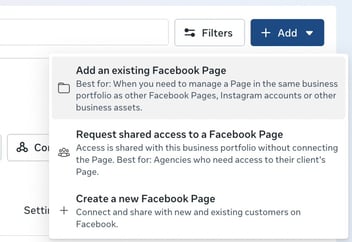
- Add the Page: Click the blue Add button and select "Add an Existing Page."
- Enter Details: Type in your Facebook page name or URL. If you are already an admin, the ownership transfer to your Business Portfolio will happen instantly.
Step 2: Connect the Instagram Profile
Note: Ensure your Instagram is already converted to a "Professional/Business" account in the IG app settings before starting.
-
Navigate to Instagram Accounts: In Business Settings, click Accounts > Instagram Accounts.
-
Add Account: Click the blue Add button and select "Connect your Instagram account."
-
Login: A pop-up will appear; log in with the property’s Instagram credentials and follow the prompts.
-
Assign Assets: Once connected, click "Connect Assets" and select the Facebook Page you claimed in Step 1 to link them.

Step 3: Assign GTMA as a Partner
To allow GTMA/EvernodeAI to manage these assets, follow these steps:
-
In Business Settings, click Partners on the left.
-
Click Add > "Give a partner access to your assets."
-
Enter GTMA’s Partner ID:
716818398403147 -
Select the Page, Ad Account, and Instagram Account, toggle on "Full Control" or "Manage" permissions, and click Save Changes.
Pro-Tip: If you encounter an error connecting Instagram, double-check that the account is set to a Business Account (not Personal) within the Instagram mobile app settings.